
Vigor Router can send the email to notify the network administrator for the events including
- WAN disconnect / reconnect
- VPN disconnect / reconnect
- Temperature Alert, when the temperature detected by the attached thermometer out of the defined range
- WAN budget, when reaching the WAN budget limit
- Central VPN Management: CPE offline, CPE config backup / restore fail, CPE firmware upgrade fail, and CPE VPN profile setup fails
- High Availability, when the WAN of primary router failed and the secondary router take over, configuration sync between primary and secondary router fail, and one of the routers becomes unstable
- Security(for 2865/2927), when there are any log-in events via WebUI/ telnet/ SSH/ TR069/ FTP, and config-changed events
Note that the options available vary between models. This article shows how to configure the router to send Email notification for WAN and VPN disconnect/reconnect for example.
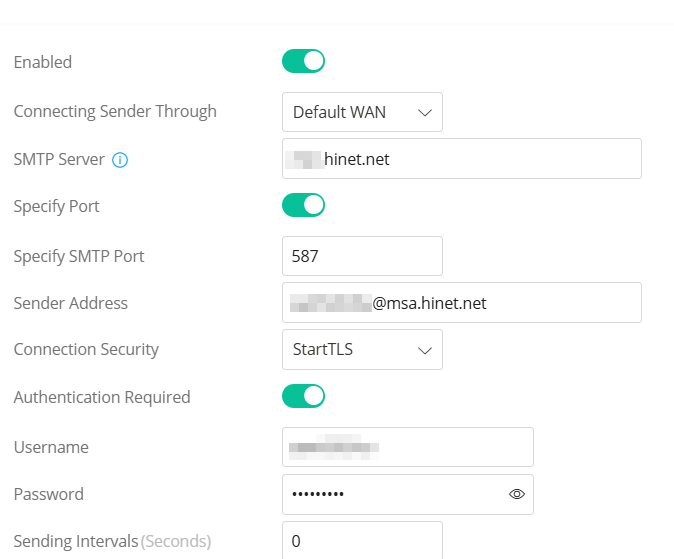
1. Set up an email account on Vigor2136 by editing the Default_Email_Profile via Configuration/ Notification Services/ SMTP Server.
- Switch On Enabled to activate the profile.
- Select the Email will be sent through which WAN interface
- Enter the SMTP server’s IP or domain name and the SMTP port
- Enter the Sender Address
- Select the Connection Security that the SMTP server uses
- Enter the email account’s username and password for SMTP server’s authentication
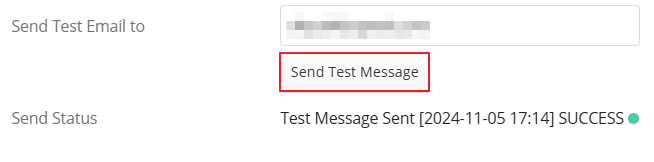
To verify the SMTP settings, please enter the recipient's email address in the Send Test Email to field and click the Send Test Message button. The Vigor2136 will display the Send Status. If the status shows SUCCESS, the SMTP settings are correct. If the status shows FAILED, please compare the SMTP settings on the Vigor2136 with those in a working mail client (e.g., Thunderbird).
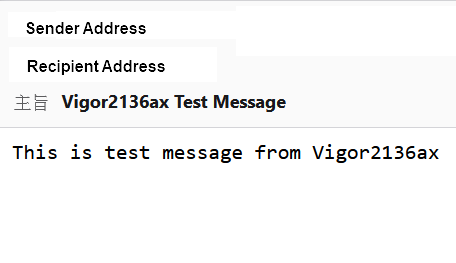
Check if the recipient receives the Test Email.
Apply the profile setting.
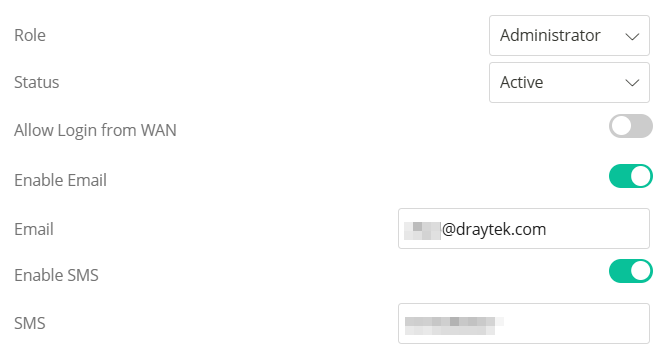
2. Enter Email information for the Admin account by editing the admin profile via System Maintenance / Account & Permission.
Switch On Enable Email and enter the Email address.
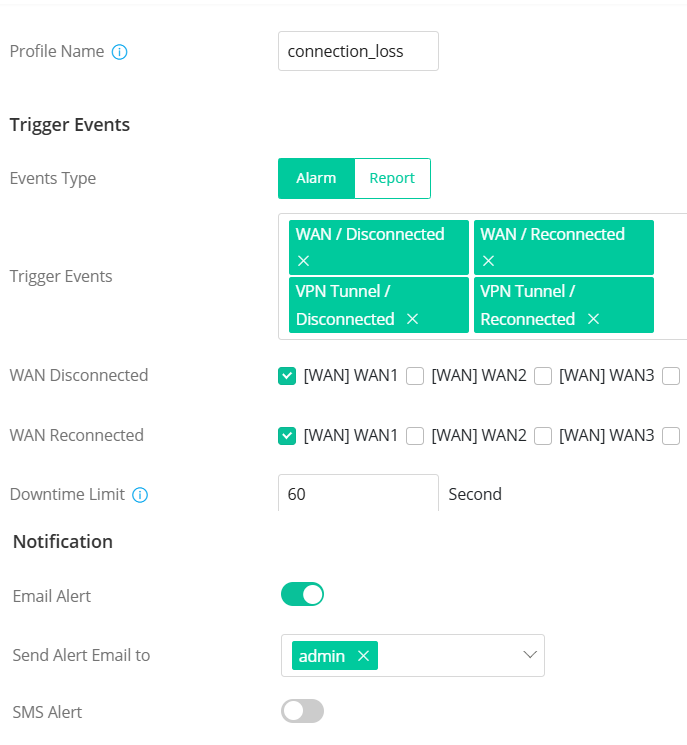
3. Navigate to Configuration / Notification Services, then click +Add to create a notification profile.
- Enter a Profile Name.
- Select the Events that will trigger the router to send an alarm.
- Switch On to enable Email Alert
- Select the account(s) which should receive the notifications.
4. Now when either WAN or VPN disconnect or reconnect, Vigor router will notify administrator via email.
Comments
0 comments
Article is closed for comments.