
This article shows how to establish an IPsec Tunnel in Main Mode between two Vigor Routers when the VPN client has a dynamic public IP address. If the VPN client is behind NAT, it is recommended that IPsec VPN be used in Aggressive mode instead.
VPN Server Setup
1. Go to the VPN / General Setup / IPsec menu page.
- Enable the IPsec Service.
- For General Site-to-Site PSK, enter a Pre-Shared Key
Then Click Apply to save the settings.

2. Go VPN / Site-to-Site VPN.
- Click +Add to create a profile.
- Enter a profile name and check enabled the profile.

General
- Select Dial-In in Direction.
- Select IPsec as the VPN Type.
- Check IKEv1/v2.

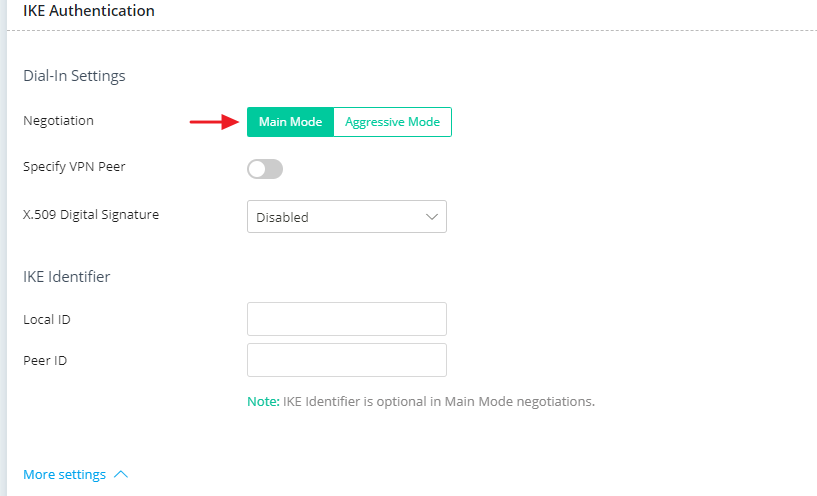
IKE Authentication
- Choose Main Mode.
- (Optional)Specify the encryption and the security protocol for IKE Phase1 and Phase2 in More settings.
Network
- Enter the Local Network of the VPN server and the Remote Network of the VPN client.

Click Apply to save.
VPN Client Setup
1. Go to VPN / General Setup / IPsec.
- Enable IPsec Service.
Click Apply to save the settings.

2. Go VPN / Site-to-Site VPN.
- Click +Add to create a profile.
- Enter a profile name and check enabled the profile.

General
- Select Dial-Out for the Direction.
- Select IPsec as the VPN Type.
- Select IKEv1 as IPsec Dial-Out Protocol.
- Enter the remote server address or domain name.
- Specify a Dial-Out Mode. Here, we choose Always On.

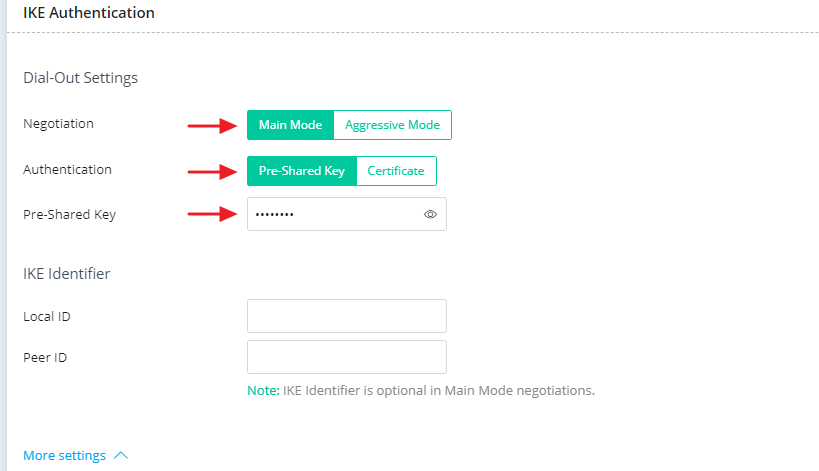
IKE Authentication
- Select Main Mode.
- Select Pre-Shared Key for Authentication.
- Enter the Pre-Shared Key configured on the VPN server.
- (Optional)Specify the encryption and the security protocol for IKE Phase1 and Phase2 in More settings.
Network
- Enter the Local Network of the VPN client and the Remote Network of the VPN server.

Click Apply to save.
After completing the configuration, the VPN Client will automatically dial up the IPsec tunnel. We can check the VPN status in VPN / VPN Connection Status.

Comments
0 comments
Article is closed for comments.